
Short answer: If music keeps buffering, first check whether the player itself stops advancing or the speakers go silent while playback appears to continue. Then establish whether one room, one source or the whole system is affected. Those observations tell you where to investigate before repeatedly rebooting equipment or buying more bandwidth.
In a venue, preserve ordinary service while you diagnose the interruption. A router may support payments, bookings and other systems as well as music. Put any disruptive change through the person responsible for that network rather than turning a music complaint into a wider outage.
If sound continues but songs jump in loudness, use the separate volume normalization test.
Confirm that the fault is buffering
Buffering is the player waiting for enough audio data to continue playback; not every silence has that cause. A paused session, muted output, disconnected link or equipment fault can also stop the sound. Watch the player during an incident and note its progress, status message and selected output. Treat those as clues, because a moving progress indicator alone does not prove that the complete audio path is working.
Use this first split:
| Observation | Start the investigation here |
|---|---|
| Playback stalls or reports loading | Delivery to the player, service availability and player behaviour |
| Playback advances but all speakers are silent | Selected output, mute, connection and downstream audio equipment |
| One room stops while others continue | That room's player, connection, control or audio path |
| Only one music source is affected | That service, account/session limits and its playback route |
| Different sources fail together | The shared parts of the network or audio system |
Sonos's interruption guide includes account streaming limits, internet delivery and wireless interference as separate checks. Its instructions apply to Sonos systems. Use the distinction to organise your observations, then follow the documentation for the equipment you actually have.

Check one room and one source at a time
Compare the affected area with an area that still works before changing the whole system. If only one zone fails, record which equipment and connection it uses. If every zone fails at the same time, identify what they share. Keep the distinction between separate streams and several speakers playing one stream; the topology matters when support staff interpret the result.
Next, compare sources where your system and permissions allow it. A working alternative shows that at least part of the audio chain can operate, but it does not identify the precise fault in the failing route. The services may use different players, account rules or delivery paths.
Write the comparison in plain language: "Front room continues; back-room player shows loading" is more useful than "Wi-Fi is bad". The multi-zone guide can help you name the rooms and independent controls consistently.
Test the connection where the music player sits
Assess the network used by the actual playback device, not just the internet service advertised on the bill. A successful speed test on a phone beside the router does not establish what reaches a player at the far end of the venue. Record the player's network, location, connection type and the conditions when interruptions occur. Include whether the problem changes during busy service.
If the equipment supports a wired connection, ask the network owner whether a temporary wired comparison is suitable. Keep the music source and player settings unchanged so the comparison answers a specific question. A better result on that route supports further investigation of the wireless path; it does not prove that every wireless system is unsuitable.
Avoid a universal bandwidth number. Requirements depend on the service, stream quality, simultaneous use and equipment. For example, Sonos currently recommends at least 5 Mbps in its own music-streaming support guidance. That is a Sonos recommendation, not a measured requirement for Sonosfera or a guarantee against interruptions.
Check sessions before assuming a network fault
A service may restrict simultaneous playback, so investigate whether another device or colleague is using the same account when interruptions occur. Check the provider's actual plan and session rules, including how they apply to independent rooms. Do not infer permission or capacity from the fact that several devices can sign in. Sonos's support page specifically includes streaming limits among its checks.
Also record whether someone changed the selected output, paused the session or switched the programme around the time of the interruption. These are questions to investigate, not assumptions about staff behaviour or a diagnosis of a particular service.
If a session rule explains the pattern, resolve that rule rather than hiding the symptom with repeated restarts. If it does not, keep the evidence and move to the next part of the chain. A good support report includes what you ruled out as well as what failed.
Make one reversible change and record the result
Change one relevant variable, then repeat the same playback check for long enough to observe the recurring problem. If you restart the player, change its network, alter audio quality and replace a cable together, a successful result leaves the cause unclear. Keep the previous setting recorded so the responsible person can restore it. Schedule network-wide changes around the venue's other services.
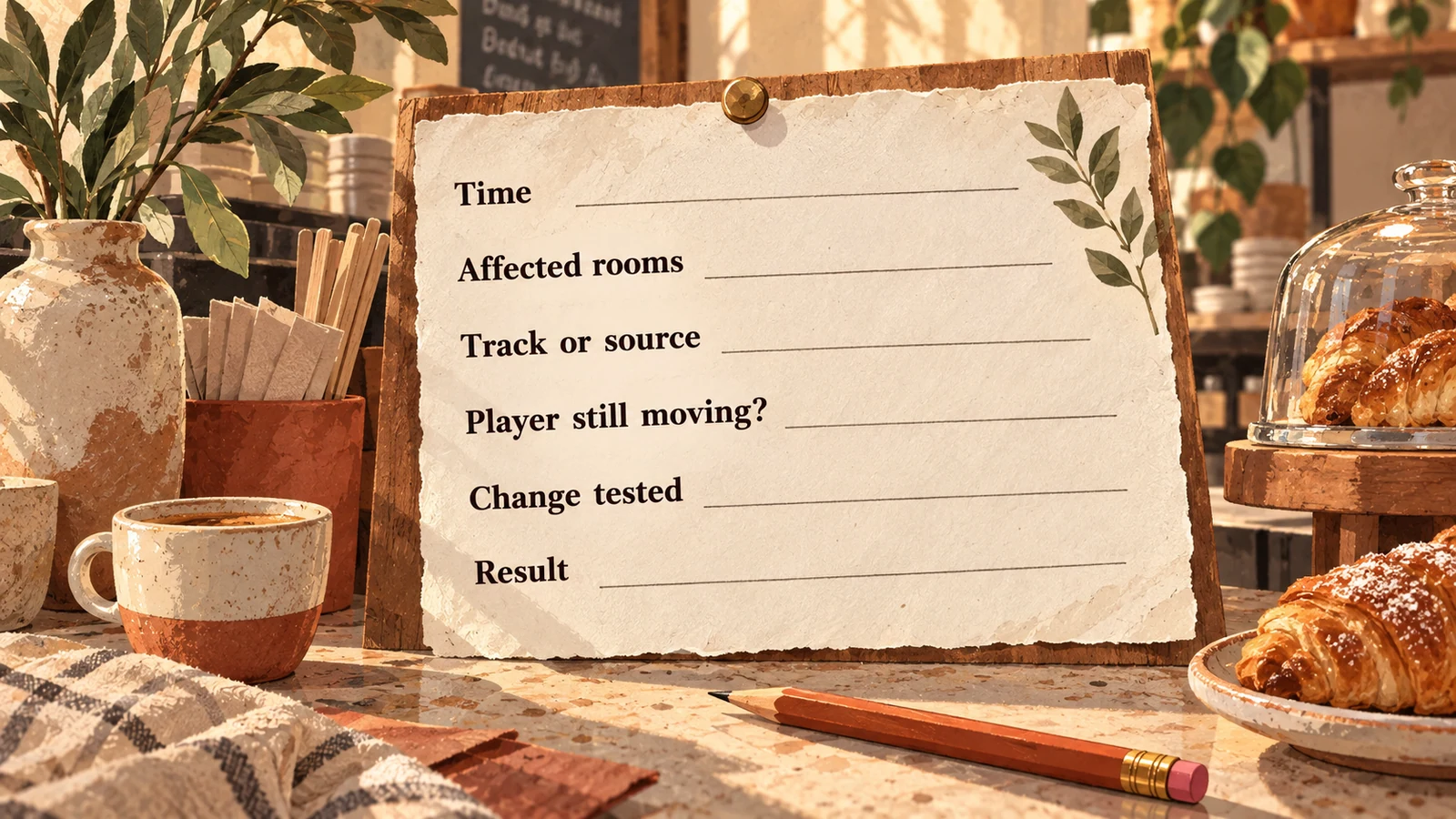
For an incident note, capture:
- Time, duration and affected room or rooms.
- Music source, player, output and connection type.
- Whether playback advanced, stalled or showed an error.
- Whether another permitted source or zone continued.
- The single change tested and the result.
- Any relevant recent equipment or network change.
Send the note to the responsible provider or installer through your normal support route. Do not include passwords, tokens or customer information in a public forum post. A concise reproducible symptom gives support more to work with than a history of unexplained reboots.
Plan the next interruption before it happens
Agree who can investigate, which systems to keep available and what the venue will do while music is unavailable. Silence can be a temporary operating choice. Do not assume an offline download exists, or substitute an unapproved personal source, simply because a stream stops. A backup needs both an appropriate playback method and permission for the intended use.
Sonosfera provides its own catalogue of business background music, described in the catalogue terms. Treat it as a streaming service when planning continuity; this guide does not promise offline downloads or uninterrupted playback through a connection failure. Use the business setup guide for the overall arrangement and the venue guides when choosing music. Compare current UK plans after establishing the source and locations you need.
Keep the working setup and the incident record together. The goal is a repeatable diagnosis and an understandable handover, so the next interruption starts with evidence rather than another blind restart.