
Short answer: Music volume normalization adjusts recordings towards a common measured level so successive tracks are less uneven. For songs that sound louder or quieter than one another, look for loudness normalization rather than matching only the highest peaks. Keep the room volume unchanged while testing, because moving it between songs hides the difference you are trying to diagnose.
That distinction is practical in a shop, salon or cafe. If staff keep reaching for the volume control at each track change, establish whether the recording, the player or the room position is responsible before changing the whole soundtrack.
For the complete playback chain, use the business music setup guide.
Equal peaks do not mean equal loudness
Peak normalization matches a recording's highest level; loudness normalization works from a measure intended to reflect perceived loudness. Two tracks can have similar maximum peaks yet sound quite different across their duration. Audacity documents these as separate operations in its Normalize and Loudness Normalisation guides. Choose the control that matches the problem you can hear.
Think of a sparse recording with brief percussion peaks beside a dense recording that stays prominent for much of the song. Matching their tallest peaks does not make their overall presentations equivalent. A loudness-based measurement addresses a different question from a peak limit.
Neither measurement chooses the right volume for a customer's conversation. The player processes a signal; the amplifier, speakers, room and listening position determine the sound people hear. Use the venue volume guide for that separate decision.
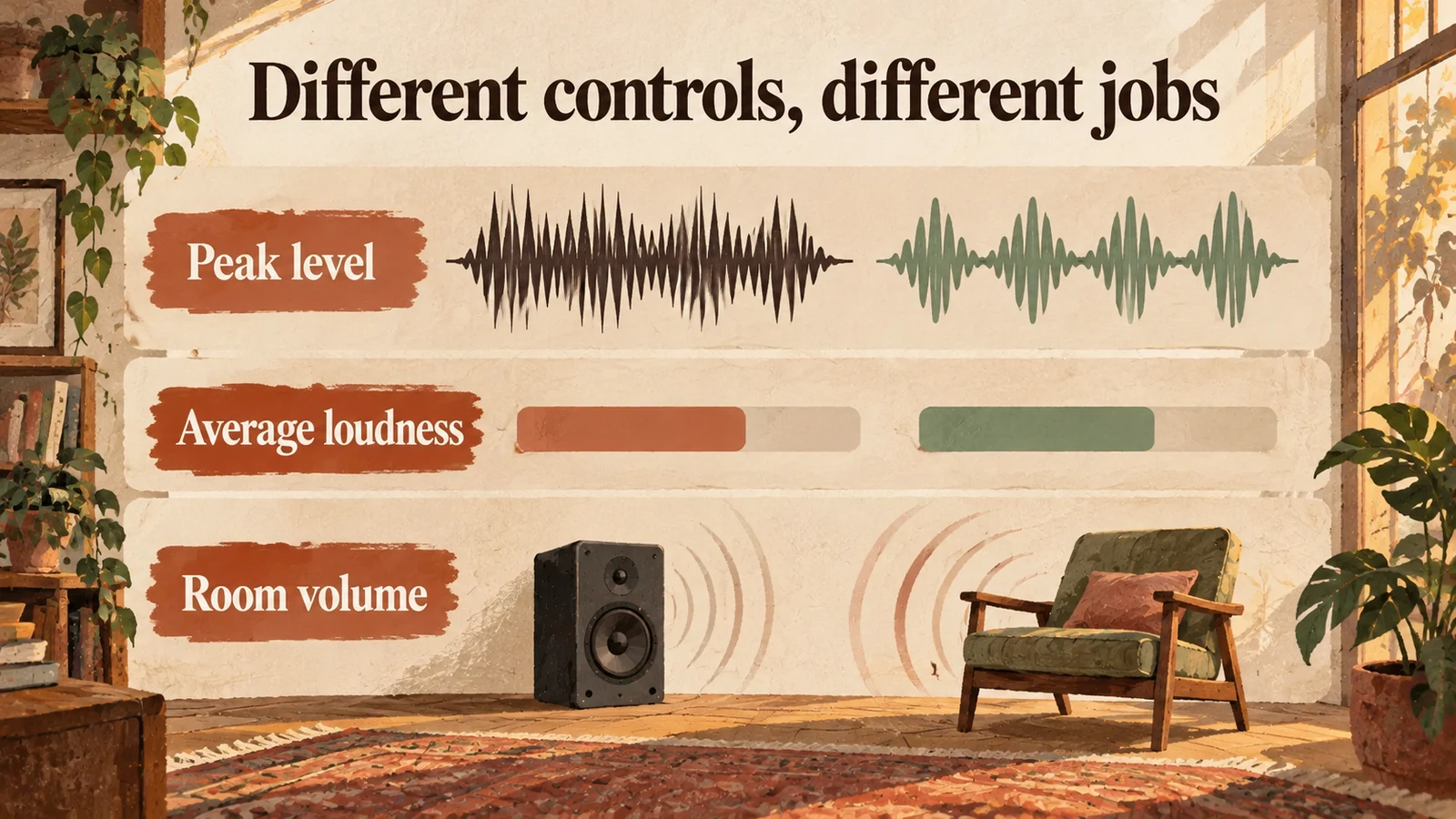
Find the control that matches the symptom
Describe when the unwanted change happens before selecting a processing tool. A whole song that is consistently louder than the previous song suggests a different investigation from a single dramatic chorus, a boomy corner or a distorted speaker. Normalization is one part of the playback chain. It cannot answer every complaint that people describe as a volume problem.
| What you hear | What to investigate first |
|---|---|
| One complete song is louder than the next | Track-to-track loudness and the player's normalization behaviour |
| A verse is quiet but the chorus is intrusive | The recording's internal dynamics and whether the track suits the task |
| The same song is intrusive at the till but faint elsewhere | Speaker placement, coverage and local controls |
| Bass dominates while the rest seems quiet | Programme choice, room response and the system's EQ |
| Crackling or harshness remains | Signal levels, connections or equipment faults |
Compression, equalisation and normalization are not interchangeable labels. Compression changes dynamics according to its settings; EQ changes frequency balance; normalization applies a level adjustment based on its chosen measurement. Get technical help for system processing rather than stacking controls until the room sounds different but nobody knows why.
Run a listening test without chasing the volume knob
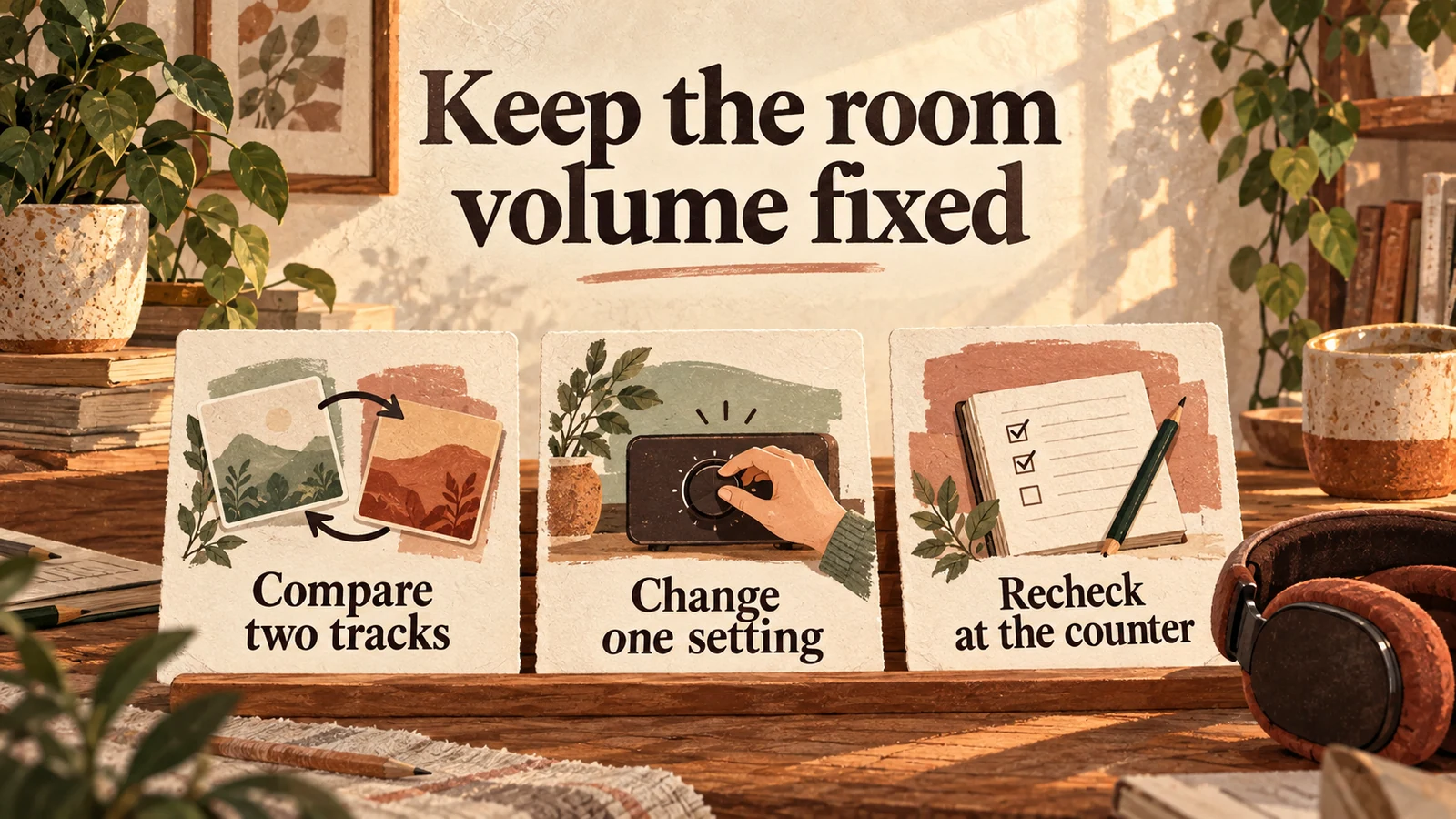
Choose a pair of tracks that reproduces the complaint and compare them through the actual venue system at one unchanged room setting. Listen at the counter and a representative customer position. Note whether the difference lasts across the song or only appears in a passage. Then change one relevant setting and repeat the same comparison. That leaves a result someone else can reproduce.
Keep this sequence in the operating notes:
- Identify the player, output route and current settings.
- Choose a quieter and a louder candidate from the normal programme.
- Keep the master level fixed while comparing them.
- If the player offers normalization, check its documentation and test it on that output.
- Recheck the busiest passages as well as the track starts.
- Record what changed and whether the complaint remains.
Do not assume that a setting in one app controls a separate connected player. Nor should a desktop result stand in for a test of the device feeding the venue speakers. The relevant result is what reaches the room through the operating setup.
For editable local files, use loudness processing deliberately
If you have recordings you are permitted to edit, work on copies and use the editor's loudness operation for a track-matching task. In Audacity, select the audio and open Effect → Volume and compression → Loudness Normalization, following the current manual. Choose a documented target suitable for your delivery purpose and compare the exported result through the intended player.
Treat each song as the item you want to match. Processing a whole long programme as one selection answers a different question from independently assessing its constituent tracks. Keep the source files so you can undo a choice, and check the result for unwanted distortion and stereo-balance changes.
Audacity's manual explains that normalising stereo channels independently changes their balance. For ordinary balanced stereo material, keep linked treatment unless there is a specific reason to correct the channels separately. An editor setting is not permission to download or alter recordings from a streaming service; confirm your rights and the provider's terms first.
Why can quiet passages still disappear?
Matching overall track loudness does not make every moment equally loud. Audacity's loudness effect describes applying a gain change to the selection. A recording can therefore retain a quiet opening or a large verse-to-chorus contrast after processing. Decide whether that musical shape fits a room with conversation and equipment noise before trying to make every passage equally prominent.
For background use, choosing a less dramatically changing recording may be the simplest operational answer. That is a selection decision, not proof that dynamic music is unsuitable everywhere. Try the actual passage where staff have to take orders or explain a service.
If the unwanted change happens only at the boundary between tracks, also check the crossfade and transition guide. Overlapping songs can create a different problem from one song simply having a higher measured loudness.
What to ask a business-music supplier
Ask whether track-level loudness treatment is applied, which playback routes it affects and what remains under your control. If the answer matters to the purchase, request a demonstration using the actual venue output and representative tracks. A broad promise of consistent sound does not specify how a particular player, room or device behaves.
Sonosfera supplies its own catalogue of business background music. This article explains audio controls generally; it does not promise a user-adjustable normalization feature or an upload-and-edit workflow in Sonosfera. Read the catalogue terms, use the venue guides to identify the sound you need, and compare current UK plans after listening.
Keep the final handover simple: the approved player and output, the room setting, any processing actually used and the track that still needs attention. If the same comparison now plays comfortably without repeated adjustment, preserve that setting and move on to the next real issue.